
How to Write AI Video Prompts for VideoGrid AI
A practical guide to writing clear text-to-video and image-to-video prompts, choosing settings, and refining results in VideoGrid AI.
AI video prompting works best when you describe one shot at a time. In VideoGrid AI, choose whether to start with text or an image, explain the visible action, then add the camera, setting, and details that should stay consistent. Open the VideoGrid AI creator to try the workflow.
Choose how your video starts
For text-to-video, describe the scene you want to see from the first frame onward. Name the subject, give it one clear action, and state how the camera should frame or follow it.
For image-to-video, the uploaded image already defines much of the subject and composition. Focus the prompt on what should move, what may change, and what must remain recognizable. If the selected model supports a starting and ending image, describe the transition between them.
To try both workflows in one place, open the Seedance 2.5 model page. Its creator lets you choose text-to-video or image-to-video and add an optional ending image in image mode.
Build the prompt around a single shot
A useful VideoGrid AI prompt usually covers these details in order:
- Subject — the person, object, or place the viewer should notice.
- Action — one main movement that can fit inside a short clip.
- Camera — framing and movement, such as a close-up with a slow push-in.
- Setting and light — location, time of day, and the light that shapes the scene.
- Continuity — details such as a face, product label, clothing, or background that should stay stable.
- Sound — add dialogue or sound cues when the selected model offers audio generation.
Use this as a guide, not a form that every prompt must fill completely. Extra details help only when they make the shot easier to picture.
Text-to-video example
A clear glass perfume bottle stands on a pale stone table. The camera slowly pushes in as morning light moves across the label. Keep the bottle centered, the label legible, and the background uncluttered.
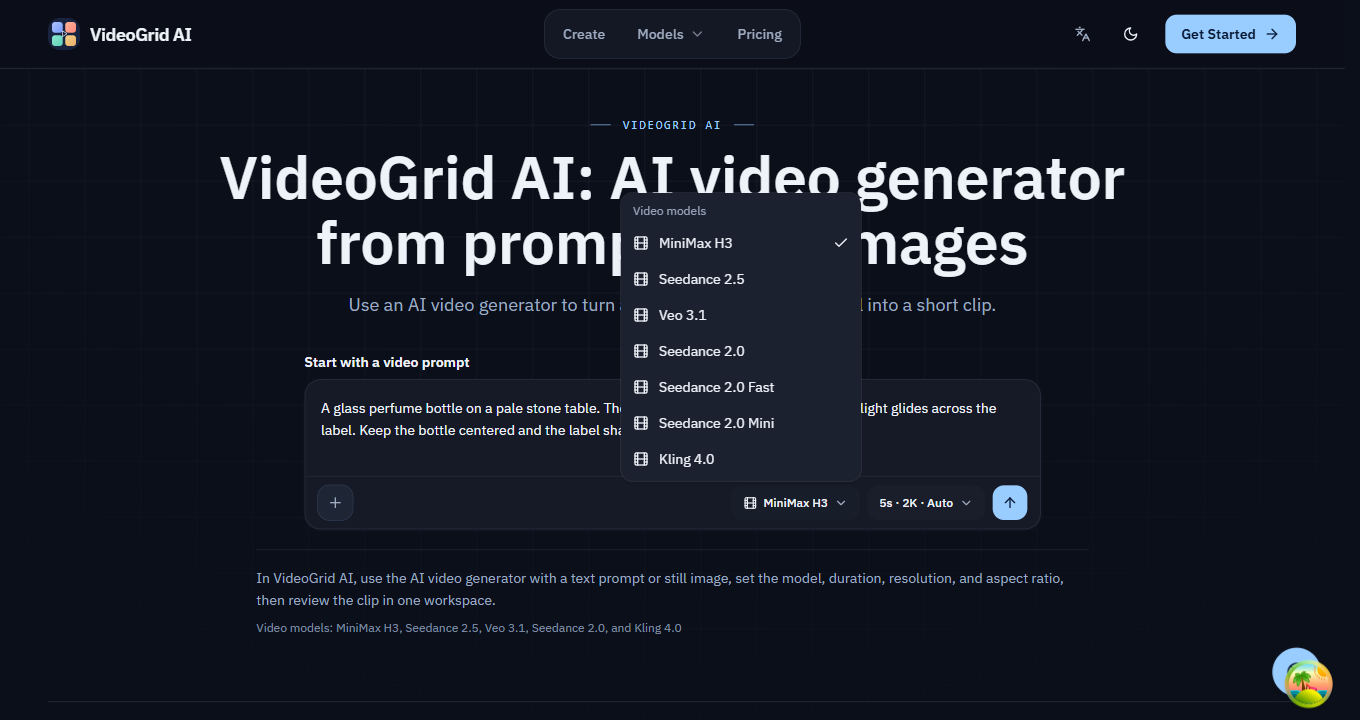
Write a clear shot prompt and review the selected model and clip settings in the creator.
The prompt keeps one subject and one camera move in focus. Try a text-first version on the Seedance 2.5 creator, or start from the homepage creator to choose from the available models.
Image-to-video example
Animate the uploaded portrait with a natural blink and a small turn toward the window. Add a subtle camera push-in. Keep the face, clothing, framing, and background consistent.
The image supplies the starting appearance, so the prompt spends its words on motion and continuity. For a two-image transition, try the image workflow on the Seedance 2.5 model page and add an ending frame when it helps define the change.
Choose settings, then review the result
After writing the shot, select a model and use the controls available for that model and mode. Set the duration and framing, then review the displayed credit estimate before submitting. The MiniMax H3, Kling, Veo 3.1, and Seedance 2.5 pages each provide a model-specific creator where you can explore the available options.
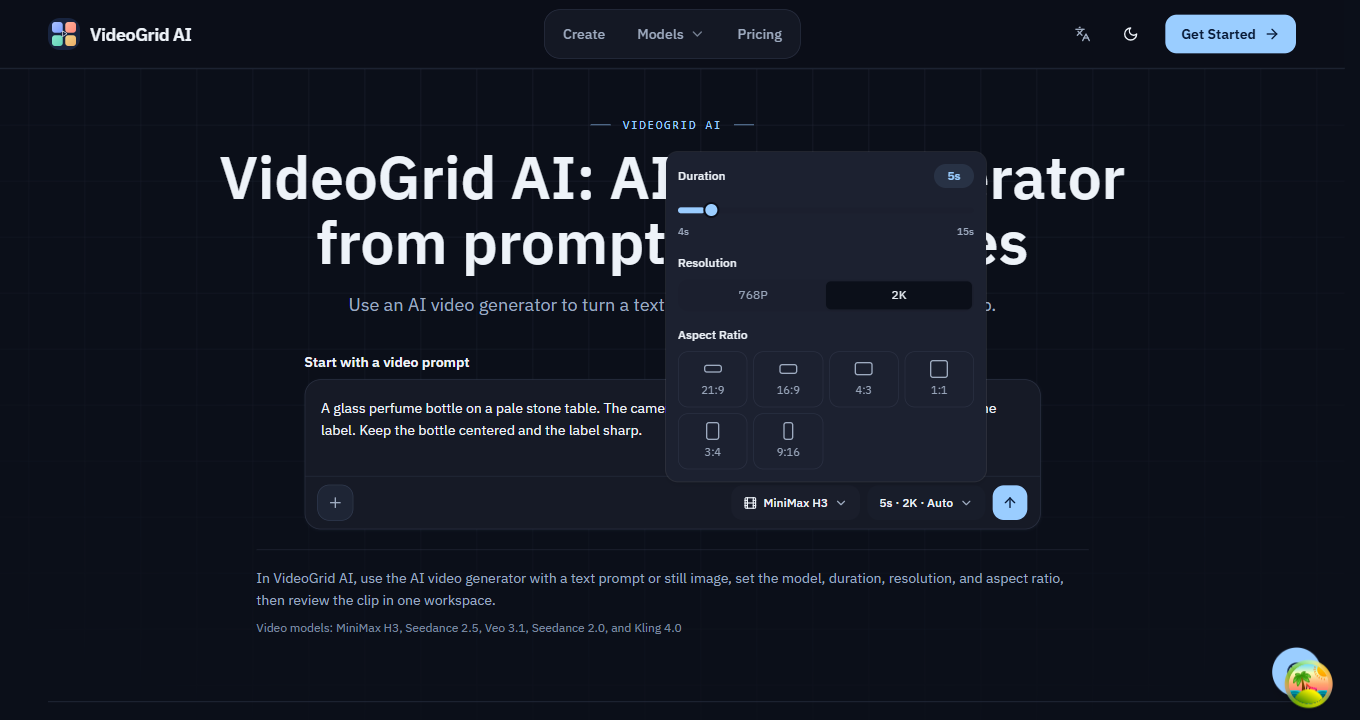
Choose a duration, resolution, and aspect ratio from the settings menu.
When the video is ready, check whether the subject, motion, camera, and important details match the brief. If the result is close, revise one part of the prompt at a time. Changing only the camera move or only the lighting makes it easier to see what improved the next take.
A quick prompt check
- Can you identify one subject and one main action?
- Does the camera movement support that action?
- Have you said what should stay consistent, especially when using an image?
- Is the selected duration long enough for the action?
- Have you checked the available settings and credit estimate?