
Kling 4.0
Kling 4.0 AI Video Generator
Use text or an opening image to create a clip, add an optional end frame, and review duration, resolution, framing, and estimated credits before submitting.
Kling AI prompt examples
Video examples
What Is the Kling AI Video Generator?
Use this Kling 4.0 AI video generator to make a video from a written scene or one or two uploaded frames. The creator updates the estimated credit cost as you change duration and resolution, then shows the result in your conversation and library for preview and download.
A Kling AI video generator turns a prompt or image into a moving scene. Text-to-video starts from a written shot description. Image-to-video begins with a visual frame and animates the action you describe. This page focuses on Kling 4.0, with text and image workflows, duration choices, prompt examples, and credit estimates in one place.
Use the composer to direct one specific shot. It accepts a prompt, a supported duration, resolution, and text-mode framing. Image mode accepts an opening image and an optional ending image. Kling 4.0 generates native audio by default, and the completed video appears in the conversation and library.
- Duration
- 3s–30s
- Aspect Ratio
- 16:9, 9:16, 1:1, 21:9, 4:3, 3:4
- Resolution
- 720p, 1080p
- Image to video
- This variant accepts at most 2 input images.
What Can You Make with a Kling AI Video Generator?
Use Kling text to video for a cinematic character beat, a short establishing shot, a product reveal, a social vertical, or a quick visual concept. Describe one clear action and one camera movement. A small number of visual changes usually gives the model a more coherent shot than a list of unrelated events. Product teams can use the same approach for a feature moment, a packaging close-up, or a simple tabletop advertisement, then review the clip before adding it to a larger edit.
Use Kling image to video when the first frame matters. A portrait, product photo, illustration, or location still gives the model a visual starting point. Add a second image when you want to provide an ending frame for a transition. The uploaded frames guide the composition, while the prompt explains what should move and how the scene should evolve. These are short generated clips, so plan a self-contained moment that can work as a shot, loop candidate, storyboard test, or draft asset. Review generated results for identity, text, physical details, and continuity.
How to Use the Kling AI Video Generator
Start in the creator at the top of this page. It shows the selected settings and estimated credits for the shot.
- 01Choose text to video for a prompt-only clip, or choose image to video to animate an uploaded image.
- 02Write the shot in the prompt box. In image mode, upload the opening frame first and an optional ending frame second.
Choose a duration from 3 through 30 seconds and 720p or 1080p resolution. Text mode offers 16:9, 9:16, 1:1, 21:9, 4:3, or 3:4 framing. Image mode follows the uploaded image's framing and accepts an optional ending frame. Review the credit estimate, submit, then follow progress in the conversation until the preview and download actions appear.
Kling Text to Video vs. Kling Image to Video
Kling 4.0 text-to-video starts from a blank visual canvas and builds the scene from language. Use it when the subject, action, setting, and camera can be described directly. Choose a 3–30 second duration, 720p or 1080p resolution, and a 16:9, 9:16, 1:1, 21:9, 4:3, or 3:4 frame.
Kling 4.0 image-to-video starts from an uploaded image. Add an optional second image when you want an ending frame, then describe the motion and camera change between them. The uploaded frame determines the composition. Use JPEG or PNG for the documented image formats, with at least 300 by 300 pixels and an aspect ratio from 0.4 to 2.5. The uploader shows VideoGrid's active file-size limit.
How to Write a Kling AI Prompt
A clear Kling AI prompt describes a filmable shot. Begin with the subject and the visible action, then add the setting, camera language, lighting, and mood. The official Kling prompt guide recommends thinking about subject, movement, scene, camera language, and lighting. Keep the order of events simple. Say what moves, where the camera moves, and what should remain consistent. In image mode, use the uploaded image as the starting frame and focus the prompt on motion and changes.
Write concrete verbs such as turns, walks, opens, pours, or glides. Specify a camera move such as a slow push-in, locked-off close-up, or lateral track. Add only visual details that affect the shot, such as a reflective surface, soft window light, or shallow depth of field. Avoid conflicting camera directions and multiple unrelated actions. Keep one prompt focused on one coherent shot.
- Subject and action
- Camera movement and framing
- Setting and important visual details
- Lighting and color mood
- Details to preserve or avoid
Kling 4.0 Settings and Limits
Kling 4.0 accepts 3–30 second clips at 720p or 1080p. Text-to-video accepts 16:9, 9:16, 1:1, 21:9, 4:3, and 3:4. Image-to-video accepts an opening image and an optional ending image, with framing matched to the uploaded images.
Kling 4.0 generates native audio by default. A single focused prompt works well for a person turning, a product rotation, or a cinematic camera move. The creator supports the duration, resolution, and framing settings shown here.
Kling 4.0 Credit Estimate and Generation Time
Kling 4.0 costs 50 credits per second at 720p and 75 credits per second at 1080p. Check the total shown by the creator before submitting.
Generation is asynchronous. The chat shows task progress while the clip is processed. Confirm the displayed estimate and your balance before submitting. If credits are insufficient, the existing pricing path appears before generation starts.
Fixing common Kling video issues
A queued task is still processing, so keep the conversation open while progress updates. If a request is rejected, check the prompt length, image format, duration, and text-mode ratio. A shorter prompt with one main action is easier to revise.
If generation fails after a task starts, VideoGrid records the failed task and returns reserved credits. If an image upload fails, check the size limit shown in the composer, use a documented JPEG or PNG image, and provide a frame at least 300 by 300 pixels with a supported ratio.
Kling Video Examples
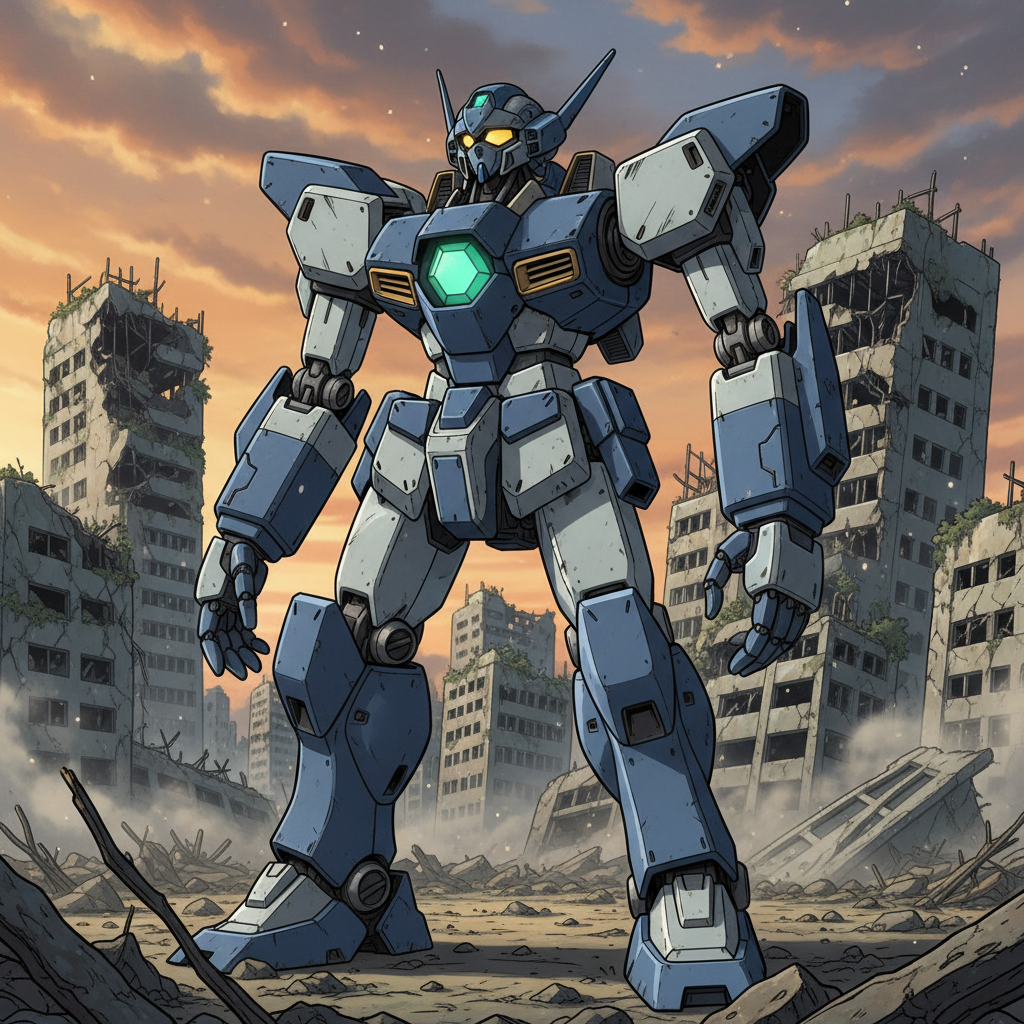
These VideoGrid examples illustrate framing and motion. Use the creator to generate Kling 4.0 clips from prompts or reference images.
Kling AI Video Generator FAQ
Can this Kling AI Video Generator create videos from text and images?
Yes. Use text-to-video for a prompt-only shot or image-to-video with an opening image and an optional ending image.
What duration can I choose for a Kling 4.0 video?
Kling 4.0 supports integer durations from 3 through 30 seconds for both text-to-video and image-to-video.
Which aspect ratios and resolutions are supported?
Text-to-video offers 16:9, 9:16, 1:1, 21:9, 4:3, and 3:4 framing at 720p or 1080p. Image-to-video follows the uploaded image's framing and supports the same output resolutions.
Does Kling 4.0 generate native audio?
Kling 4.0 generates native audio by default. The current creator does not show an audio-off option.
Can I provide both a start frame and an end frame?
Yes. Upload the opening frame first and an optional ending frame second, then describe the transition in the prompt.
How many credits does a Kling video cost?
At 50 credits per second for 720p and 75 for 1080p, a 5-second clip costs 250 credits at 720p or 375 credits at 1080p.
How long does Kling video generation take?
Generation is asynchronous. The conversation shows progress while the clip is processed, and the preview appears when it is ready.
What happens if a Kling generation fails?
A failed task returns its reserved credits. Before trying again, check the prompt, selected settings, image requirements, and available balance.